



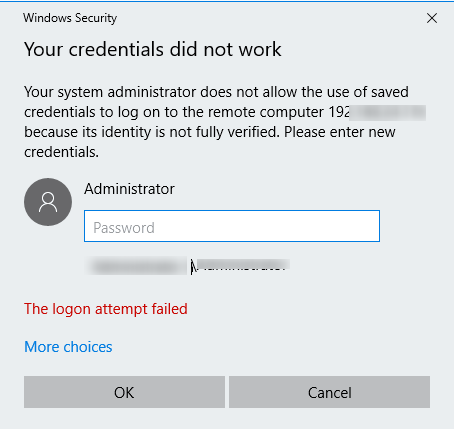
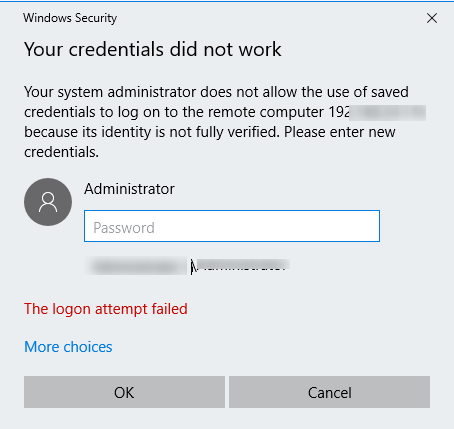
Windows 內建的遠端桌面用戶端 mstsc.exe 可以將 RDP 連線使用的使用者名稱與密碼儲存到 Windows Credential Manager,讓使用者下次連接相同主機時不必再次輸入密碼。不過,若電腦與遠端主機不在同一個網域、使用本機帳戶,或受到群組原則與 Credential Guard 限制,已儲存的憑證仍可能無法使用。
本文適用於使用 Windows 內建遠端桌面連線的情境,並假設你可以在本機開啟 Local Group Policy Editor,或具備調整遠端伺服器群組原則的權限。由於儲存密碼可能增加憑證暴露風險,Active Directory 網域環境通常較適合使用單一登入(SSO)。
先確認 Windows 是否已儲存 RDP 憑證
步驟 1:在遠端桌面用戶端儲存密碼
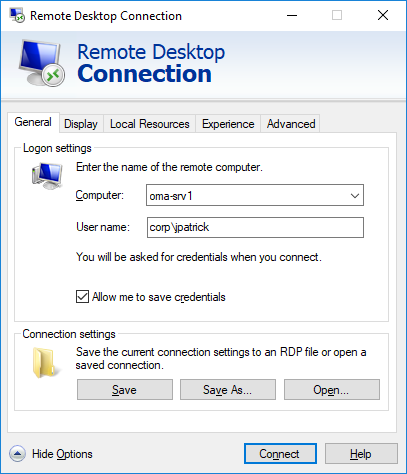
開啟遠端桌面連線(mstsc.exe),輸入遠端電腦名稱與使用者名稱,並勾選「Allow me to save credentials」。按下「Connect」後輸入密碼,Windows 會將憑證儲存到 Credential Manager,而不是儲存在 .RDP 檔案中。
步驟 2:確認用戶端是否偵測到已儲存憑證
若該電腦已有儲存密碼,遠端桌面視窗會顯示「Saved credentials will be used to connect to this computer. You can edit or delete these credentials.」。若仍然每次要求密碼,請繼續檢查以下政策設定。
透過群組原則允許使用已儲存憑證
步驟 1:開啟 Credentials Delegation
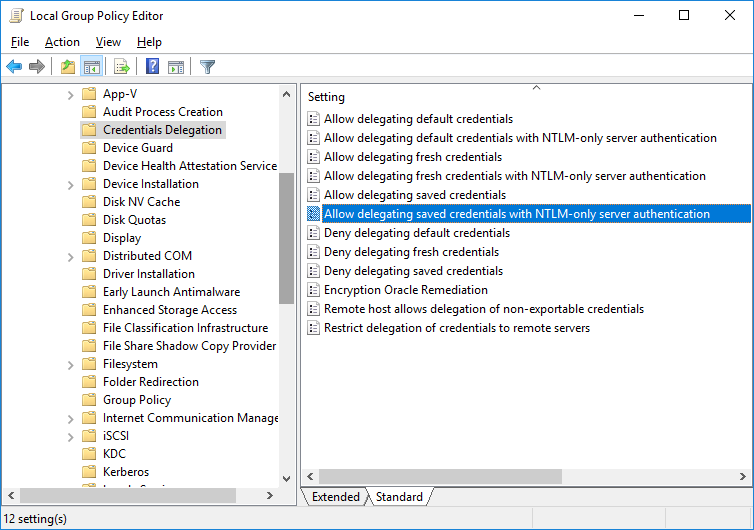
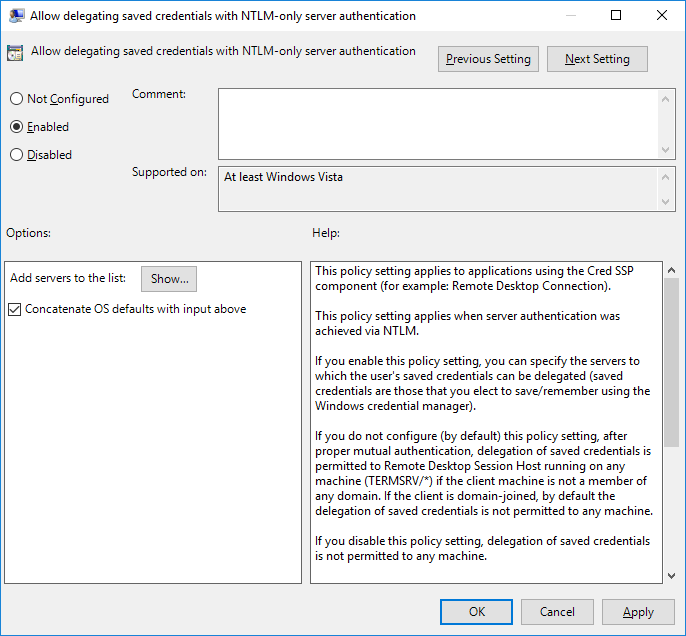
按下 Win + R,輸入 gpedit.msc,開啟 Local Group Policy Editor。前往 Computer Configuration > Administrative Templates > System > Credentials Delegation,找到「Allow delegating saved credentials with NTLM-only server authentication」。
步驟 2:指定可以使用已儲存密碼的主機
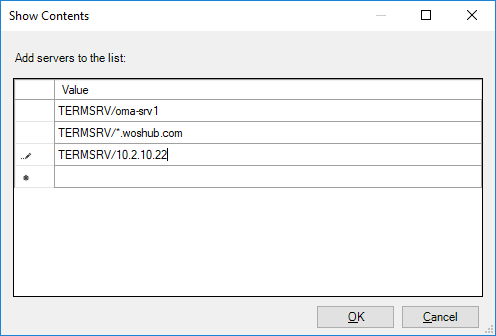
啟用上述政策,按一下「Show」,再加入允許使用已儲存 RDP 憑證的遠端主機。格式可依需求設定為以下其中一種:
- TERMSRV/server1:只允許連接指定電腦或伺服器。
- TERMSRV/*.woshub.com:允許連接 woshub.com 網域內的電腦。
- TERMSRV/*:允許連接任何遠端電腦。
TERMSRV 必須使用大寫,而且電腦名稱必須與遠端桌面用戶端連線欄位中輸入的名稱完全一致。
步驟 3:啟用另一項憑證委派政策
同樣在 Credentials Delegation 中啟用「Allow Delegating Saved Credentials」,並加入相同格式的 TERMSRV/ 主機項目。請注意,「Deny delegating saved credentials」若已啟用,會優先於允許使用的政策,必須停用或設為未設定。
Windows Registry Editor Version 5.00 [HKEY_LOCAL_MACHINE\SOFTWARE\Policies\Microsoft\Windows\CredentialsDelegation] “AllowSavedCredentialsWhenNTLMOnly”=dword:00000001 “AllowSavedCredentials”=dword:00000001 [HKEY_LOCAL_MACHINE\SOFTWARE\Policies\Microsoft\Windows\CredentialsDelegation\AllowSavedCredentialsWhenNTLMOnly] “1”=”TERMSRV/*” [HKEY_LOCAL_MACHINE\SOFTWARE\Policies\Microsoft\Windows\CredentialsDelegation\AllowSavedCredentials] “1”=”TERMSRV/*” [HKEY_LOCAL_MACHINE\SOFTWARE\WOW6432Node\Policies\Microsoft\Windows\CredentialsDelegation] “AllowSavedCredentialsWhenNTLMOnly”=dword:00000001 “AllowSavedCredentials”=dword:00000001 [HKEY_LOCAL_MACHINE\SOFTWARE\WOW6432Node\Policies\Microsoft\Windows\CredentialsDelegation\AllowSavedCredentialsWhenNTLMOnly] “1”=”TERMSRV/*” [HKEY_LOCAL_MACHINE\SOFTWARE\WOW6432Node\Policies\Microsoft\Windows\CredentialsDelegation\AllowSavedCredentials] “1”=”TERMSRV/*”步驟 4:確認系統允許儲存網路驗證憑證
前往 Computer Configuration > Windows Settings > Security Settings > Local Policies > Security Options,確認「Network access: Do not allow storage of passwords and credentials for network authentication」已停用。若此設定啟用,儲存密碼到 Credential Manager 時可能出現 Credential Manager Error,錯誤碼為 0x80070520。
步驟 5:更新群組原則
儲存變更後,開啟命令提示字元並執行 gpupdate /force,再重新嘗試 RDP 連線。
若要在網域內的多部電腦套用設定,不能只依賴本機群組原則,應使用 gpmc.msc 開啟 Group Policy Management,設定網域 GPO。
檢查用戶端為何仍然要求輸入密碼
步驟 1:關閉每次要求憑證的選項
在遠端桌面連線視窗按一下「Show Options」,確認「Always ask for credentials」沒有勾選。
步驟 2:檢查 .RDP 檔案設定
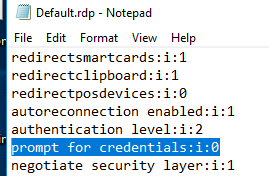
若使用 .RDP 檔案連線,確認其中的 prompt for credentials 參數值為 prompt for credentials:i:0。
步驟 3:檢查遠端桌面用戶端群組原則
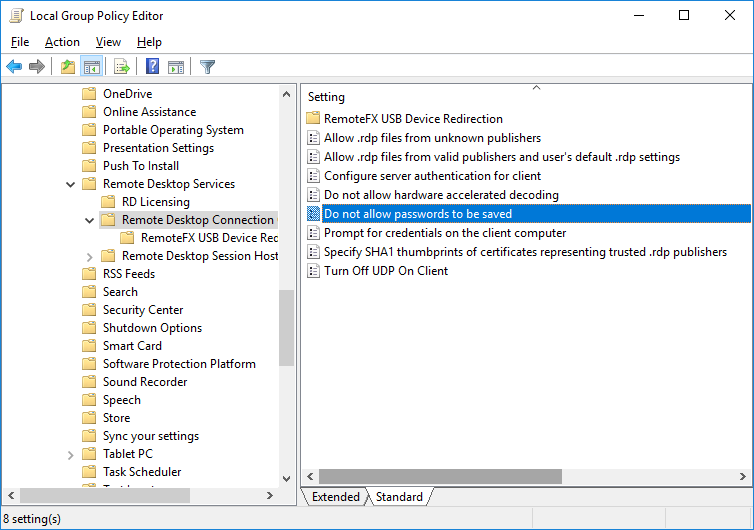
在 gpedit.msc 中前往 Computer Configuration > Administrative Templates > Windows Components > Remote Desktop Services > Remote Desktop Connection Client,確認「Do not allow passwords to be saved」及「Prompt for credentials on the client computer」沒有啟用。亦應使用 gpresult 產生套用中的群組原則報告,確認結果中的設定沒有阻止儲存密碼。
步驟 4:刪除並重新建立已儲存憑證
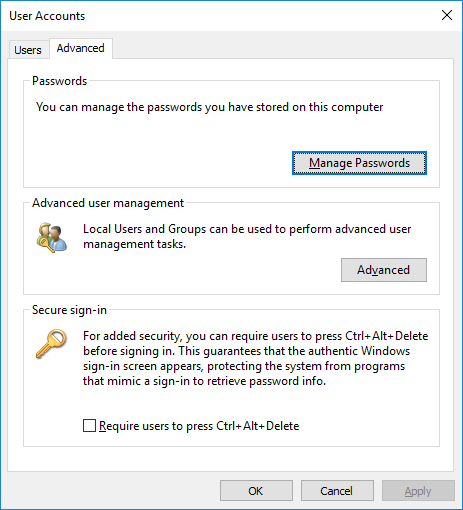
輸入 control userpasswords2,在 User Accounts 視窗開啟 Advanced 分頁,按一下「Manage Passwords」。進入 Windows Credentials 後,刪除所有已儲存的 RDP 密碼,再重新建立憑證。來源指出相關項目會以 TERMRSV/ 開頭;手動新增時,伺服器名稱格式為 TERMRSV\server_name1。
如果同時清除電腦上的 RDP 連線歷程,也應一併刪除已儲存的密碼。
步驟 5:列出或清除 RDP 憑證
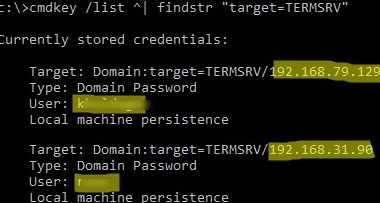
可在命令提示字元執行以下指令,列出已儲存的 RDP 憑證:cmdkey /list | findstr “target=TERMSRV”
若要清除已儲存的 RDP 連線密碼,可執行:For /F “tokens=1,2 delims= ” %G in (‘cmdkey /list | findstr “target=TERMSRV”‘) do cmdkey /delete %H
處理伺服器端拒絕已儲存憑證
步驟 1:停用 Always prompt for password upon connection
若畫面顯示「The server’s authentication policy does not allow connection requests using saved credentials」,請在遠端伺服器前往 Computer Configuration > Administrative Templates > Windows Components > Remote Desktop Services > Remote Desktop Session Host > Security,停用「Always prompt for password upon connection」。
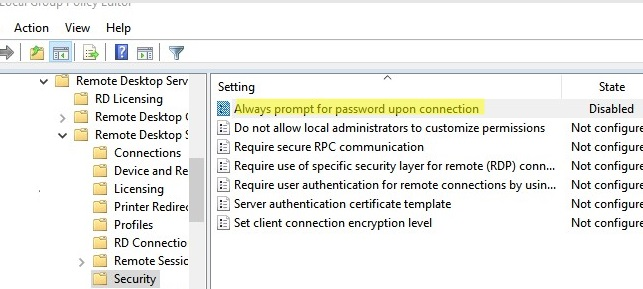
此政策啟用時,RDP 主機會強制用戶端輸入密碼。也可以在伺服器登錄中執行以下指令停用:
REG add “HKLM\SOFTWARE\Policies\Microsoft\Windows NT\Terminal Services” /v fPromptForPassword /t REG_DWORD /d 0 /f
Windows Defender Credential Guard 導致無法使用密碼
步驟 1:確認錯誤情境
Windows 11 22H2 更新後,可能出現「Windows Defender Credential Guard does not allow using saved credentials」訊息。Windows 10 1607 開始提供的 Remote Credential Guard 用於保護 RDP 憑證;在 Windows 10/11 22H2 中,預設只允許在 RDP 主機使用 Kerberos 驗證時使用已儲存憑證。
步驟 2:處理無法使用 Kerberos 的連線
如果網域控制站無法使用,或正在連接工作群組主機,系統可能改用 NTLM,而 Remote Credential Guard 會阻止此驗證方式使用已儲存密碼。來源提供的處理方式是透過登錄停用 Credential Guard:
New-ItemProperty -Path “HKLM:\System\CurrentControlSet\Control\LSA” -Name “LsaCfgFlags” -PropertyType “DWORD” -Value 0 -Force
完成相關設定後,再次連接遠端桌面。若伺服器長期未更新,並出現 CredSSP encryption oracle remediation 錯誤,也可能無法使用已儲存的 RDP 憑證。